
Stock control
Low-stock alerts for restaurants: thresholds and phone notifications
Set useful ingredient minimums, understand when alerts trigger, and connect a low-stock warning to receiving and purchasing.
In this guide
Start with a minimum that means something
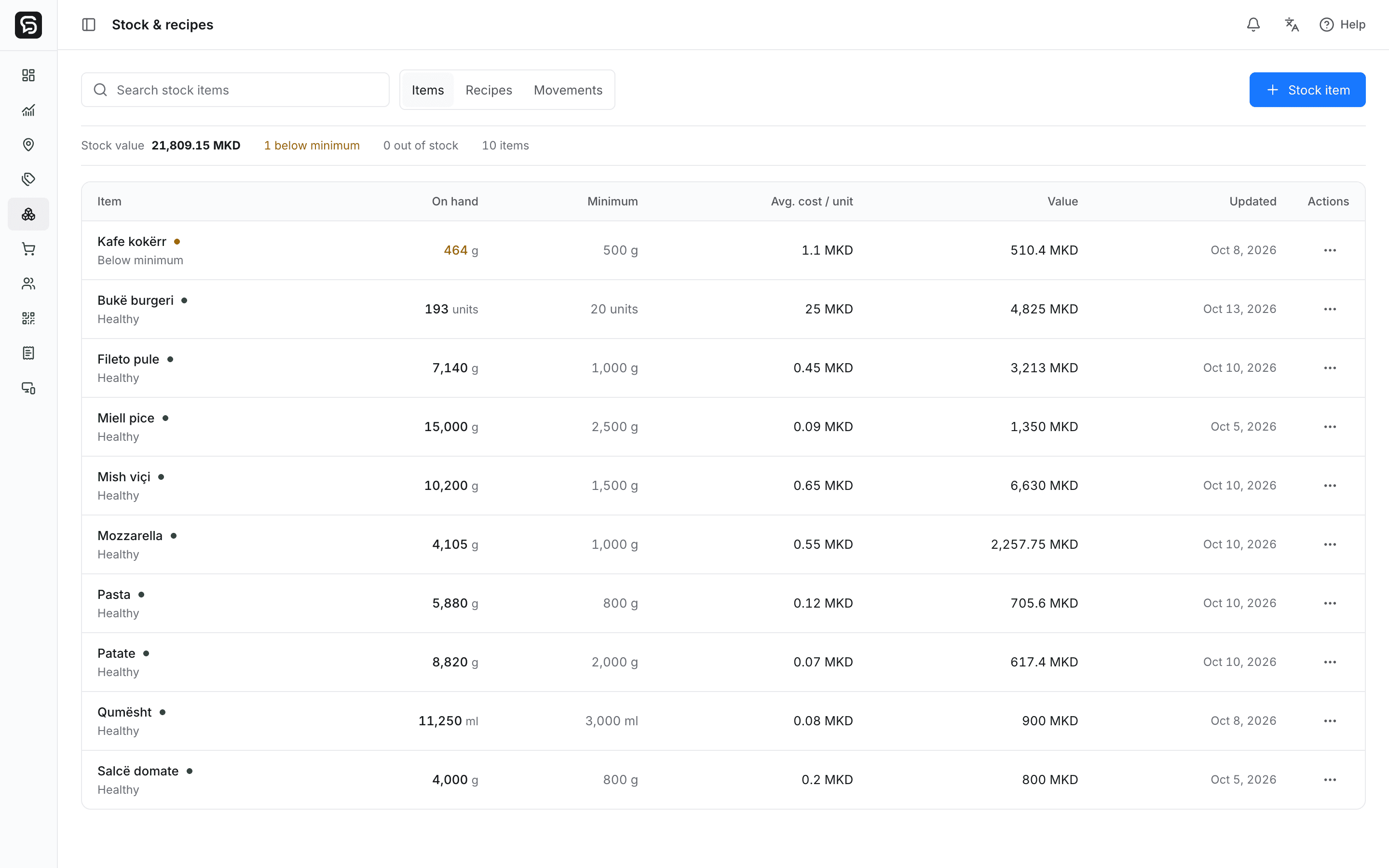
A minimum should reflect how quickly an ingredient is used and how long replenishment takes. Use the item’s actual stock unit. A threshold expressed in grams should not be treated as a count of packages unless receiving converts those packages into the same quantity.
Consider coffee with a 500 g minimum. If recorded stock moves from 600 g to 464 g, the item is now below minimum. The quantity is a record of tracked movements; physical counts are still useful when deliveries, spills or recipe portions differ from what was entered.
When does a notification arrive?
Rendo’s stock alerts follow threshold transitions: an item crosses to at or below its minimum, reaches zero, or becomes negative. More sales in the same severity do not produce a new alert for every sale. Replenishment can rearm future alerts. Existing low-stock items are visible in the dashboard but do not generate retroactive push messages simply because you opt in.
Stock movements, recorded recipe consumption, threshold changes and purchase receipts can change an item’s state. For counter and guest QR orders, recipe use follows confirmed payment. For staff table rounds, it follows the sent round. Sending a draft purchase order does not increase stock.
Enable alerts for the right location
Each browser opts in separately for each location. Support depends on device, browser and permission. The dashboard needs internet for current stock, and delivery of a push message also depends on the device and push service.
Low-stock notifications are included with Stock & Recipes. They do not require the separate Activity Alerts add-on or consume its event allowance. Activity Alerts is for recorded orders, payments and staff activity.
- Open the owner dashboard with an authorized account.
- Add the web app to your Home Screen when your device requires it for notifications.
- Open Settings → App and notifications, grant permission and enable stock alerts for the relevant location.
- Use the available notification test, then verify a real threshold transition on your own device.
Turn the warning into a stock decision
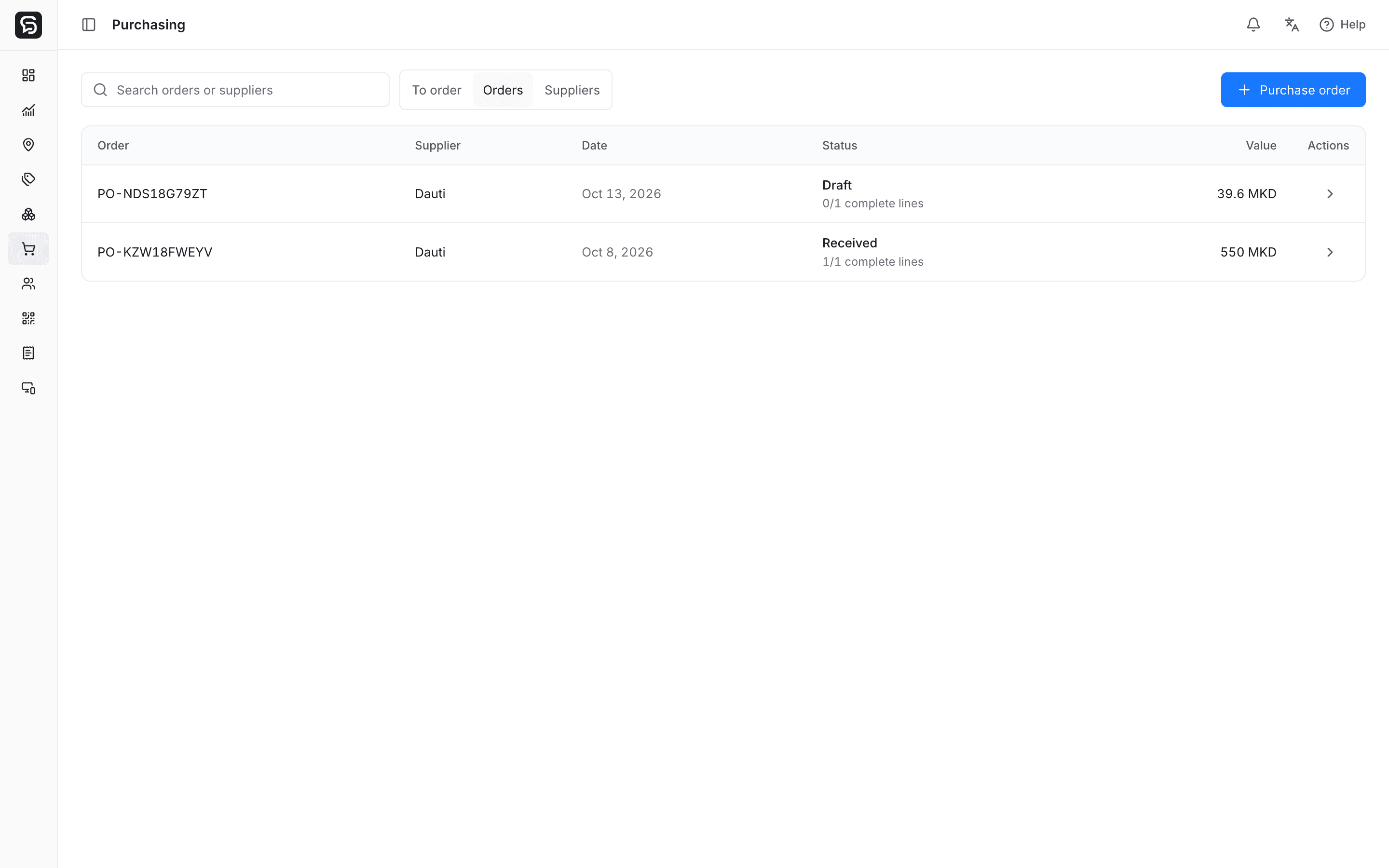
Open the ingredient from the alert and check the quantity, minimum and recent movements. Decide whether it needs a physical count, a corrected movement or a delivery. An alert is a prompt to review the record; acknowledging it does not correct the underlying stock.
With the Purchasing add-on, review suggested replenishment and prepare a supplier order. Draft and ordered purchases leave stock unchanged. Record what actually arrives, including partial deliveries and received unit costs, to update the stock record. Purchasing requires Stock & Recipes.
Keep the alert list useful
- Set ingredient minimums in consistent units.
- Review thresholds when portions, menu demand or delivery schedules change.
- Record waste and receipts so the stock quantity remains useful.
- Check notification permission when changing phones or browsers.
- Keep responsibility clear: who reviews the alert and who confirms the delivery?
See the workflow in your own context.
Bring your menu, device list and service questions. We’ll walk through the right setup for your venue.
Written by the team building Rendo. Worked examples are illustrative; your installation scope and device acceptance are agreed for your venue.
Keep reading
Restaurant inventory and recipe management: how it works
Connect menu sales to ingredient usage, deliveries, waste and physical counts—with a worked recipe example and a practical setup checklist.
Restaurant software for suppliers and purchasing: from order to stock receipt
Keep supplier orders, partial deliveries, actual quantities and ingredient costs connected without confusing purchasing with accounting.